Row block
Row block
The Row block is the main layout block in Roobely. It splits a section into columns and controls the background, spacing and height of the whole section.
Main settings
- Columns: number of columns, column gap and reverse order on mobile.
- Container: content width, full width option and container width.
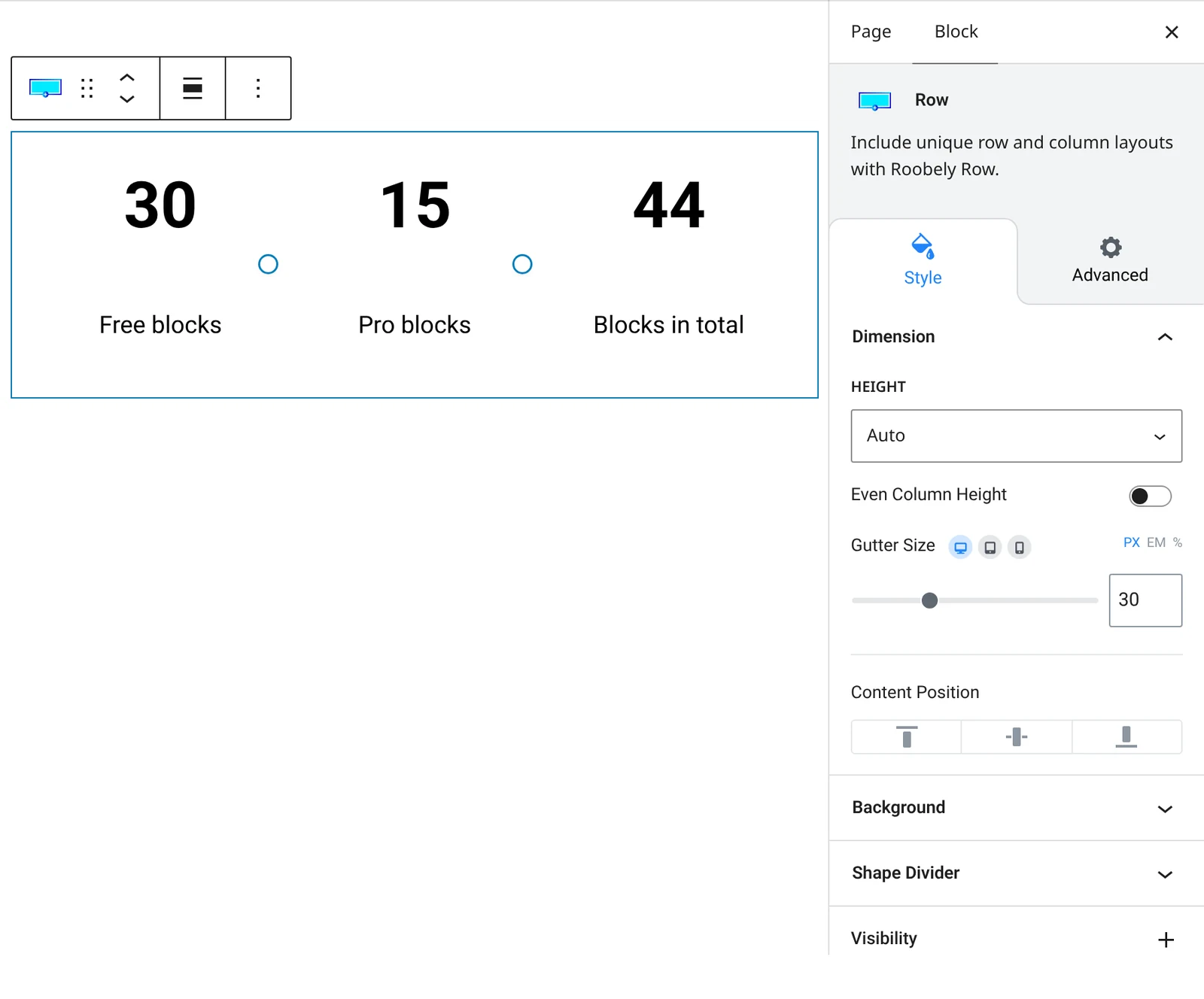
- Height: default, full screen or custom height, and equal column height.
- Background: color, gradient, image or video background with blend mode and opacity.
- Overlay: add an overlay on top of the background.
- Shape dividers: shapes at the top or bottom of the section.
- Spacing and border: padding, margin, border, radius and shadow, plus a custom row ID.
How to add it
- Open the page or post in the block editor and click the + (block inserter) button.
- Search for Row and choose the Roobely Row block.
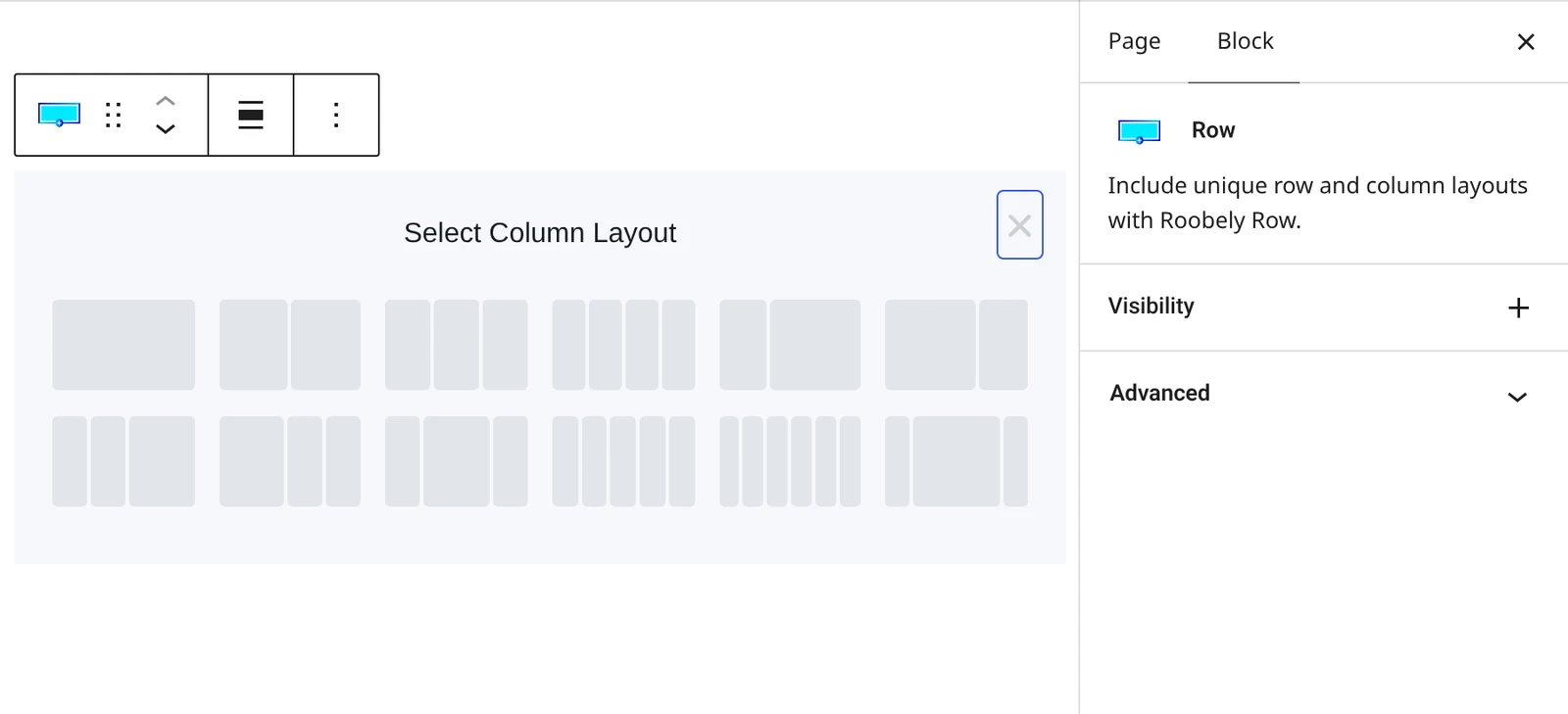
- Choose the number of columns or a column layout.
- Add blocks inside each column, then set the background and spacing.
- Click Update or Publish, then preview the page to check it on desktop and mobile.