Icon block
Icon block
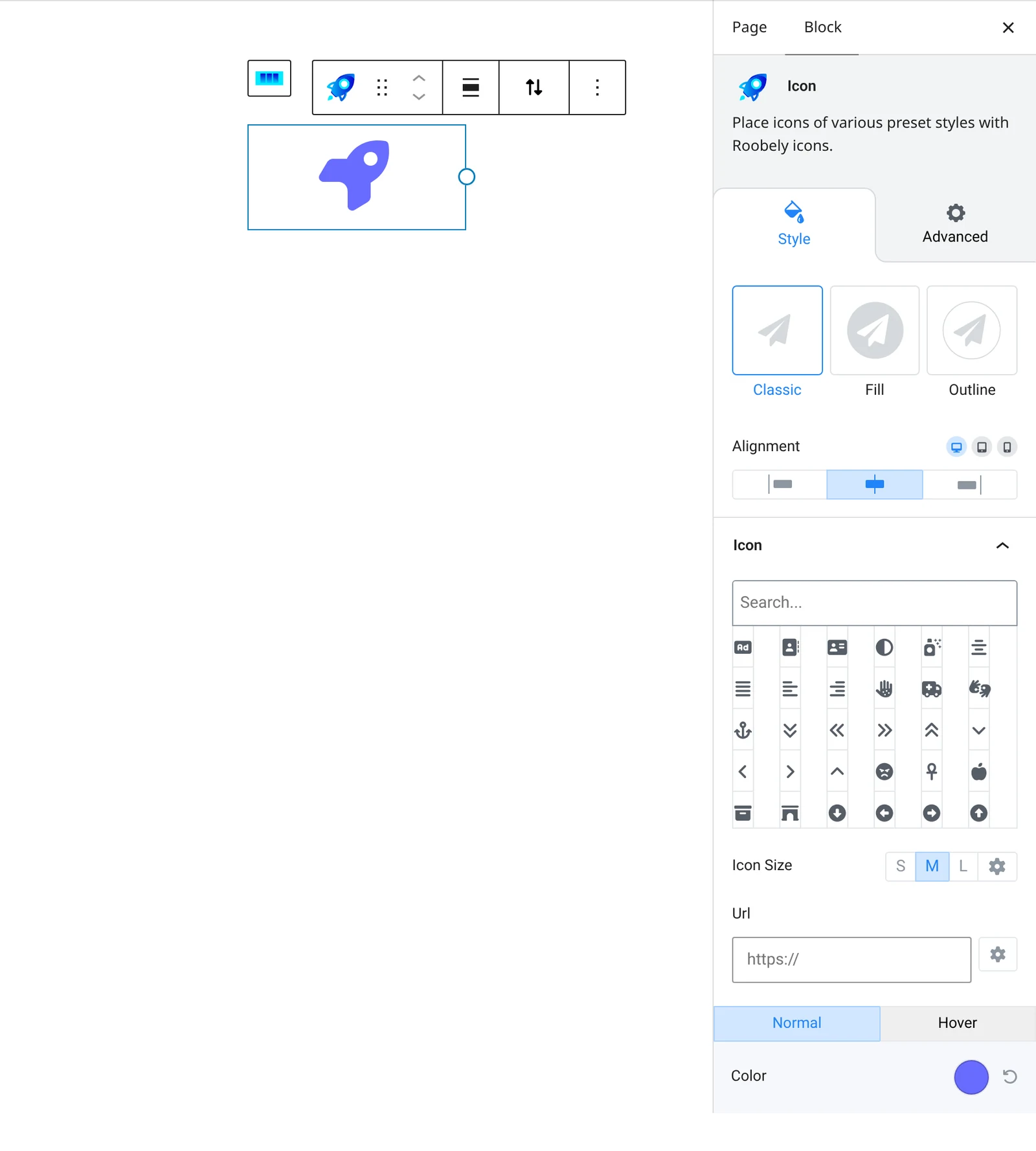
The Icon block shows one icon from the built-in icon library, with optional link, background shape and hover effects.

Main settings
- Icon: choose an icon from the library.
- Size: preset or custom icon size.
- Style: plain icon or icon with a background shape, with background size and corner radius.
- Colors: icon and background colors for normal and hover states.
- Border and shadow: border, radius and shadow options.
- Link: make the icon clickable with a URL.
How to add it
- Open the page or post in the block editor and click the + (block inserter) button.
- Search for Icon and choose the Roobely Icon block.
- Pick an icon from the icon library.
- Set the size, style and colors, and add a link if needed.
- Click Update or Publish, then preview the page to check it on desktop and mobile.