Social Icons block
Social Icons block
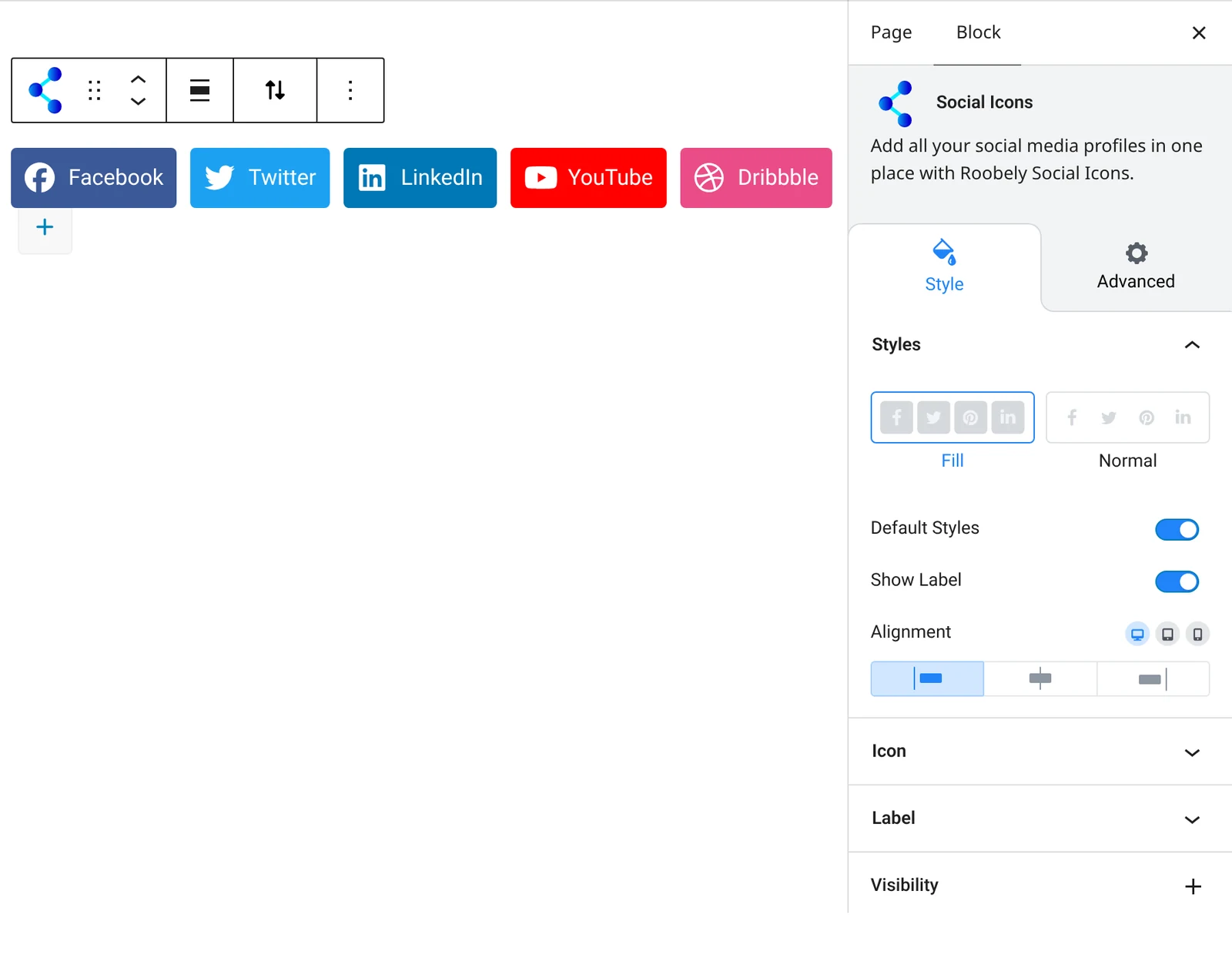
The Social Icons block shows a set of social network icons that link to your profiles.

Main settings
- Icons: add social networks, set each link and optional label.
- Layout: horizontal or vertical layout and alignment.
- Size and spacing: icon size, padding and gap between icons.
- Colors: icon and background colors with hover states, or the default network colors.
- Border: border, radius and hover border color.
- Labels: label typography and spacing.
How to add it
- Open the page or post in the block editor and click the + (block inserter) button.
- Search for Social Icons and choose the Roobely Social Icons block.
- Add the social networks you want and paste each profile link.
- Choose the layout, size and colors.
- Click Update or Publish, then preview the page to check it on desktop and mobile.