Vertical Tabs block
Requires Roobely Pro. Get Roobely Pro
Vertical Tabs block
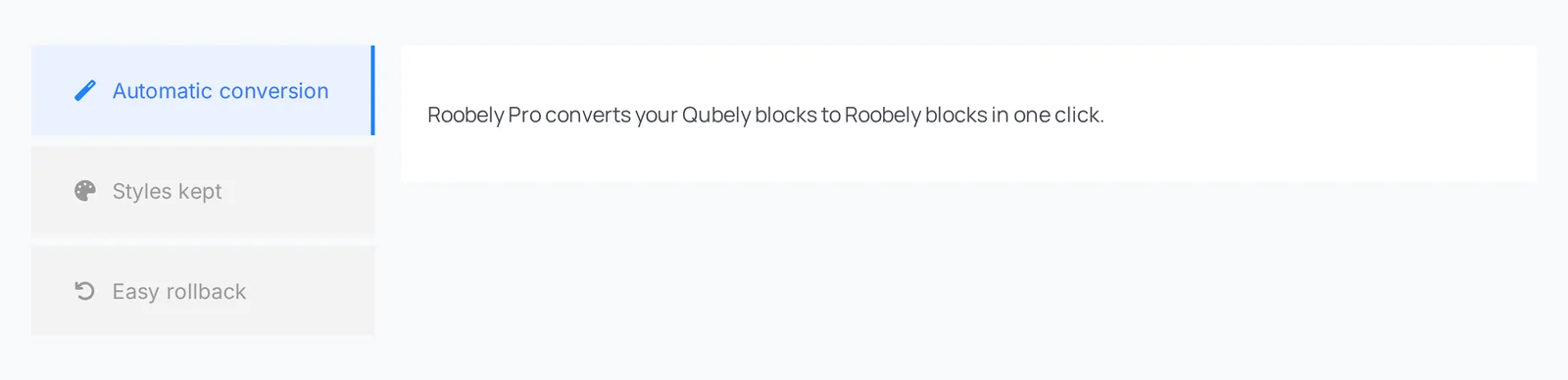
The Vertical Tabs block places the tab navigation in a column beside the content.
Main settings
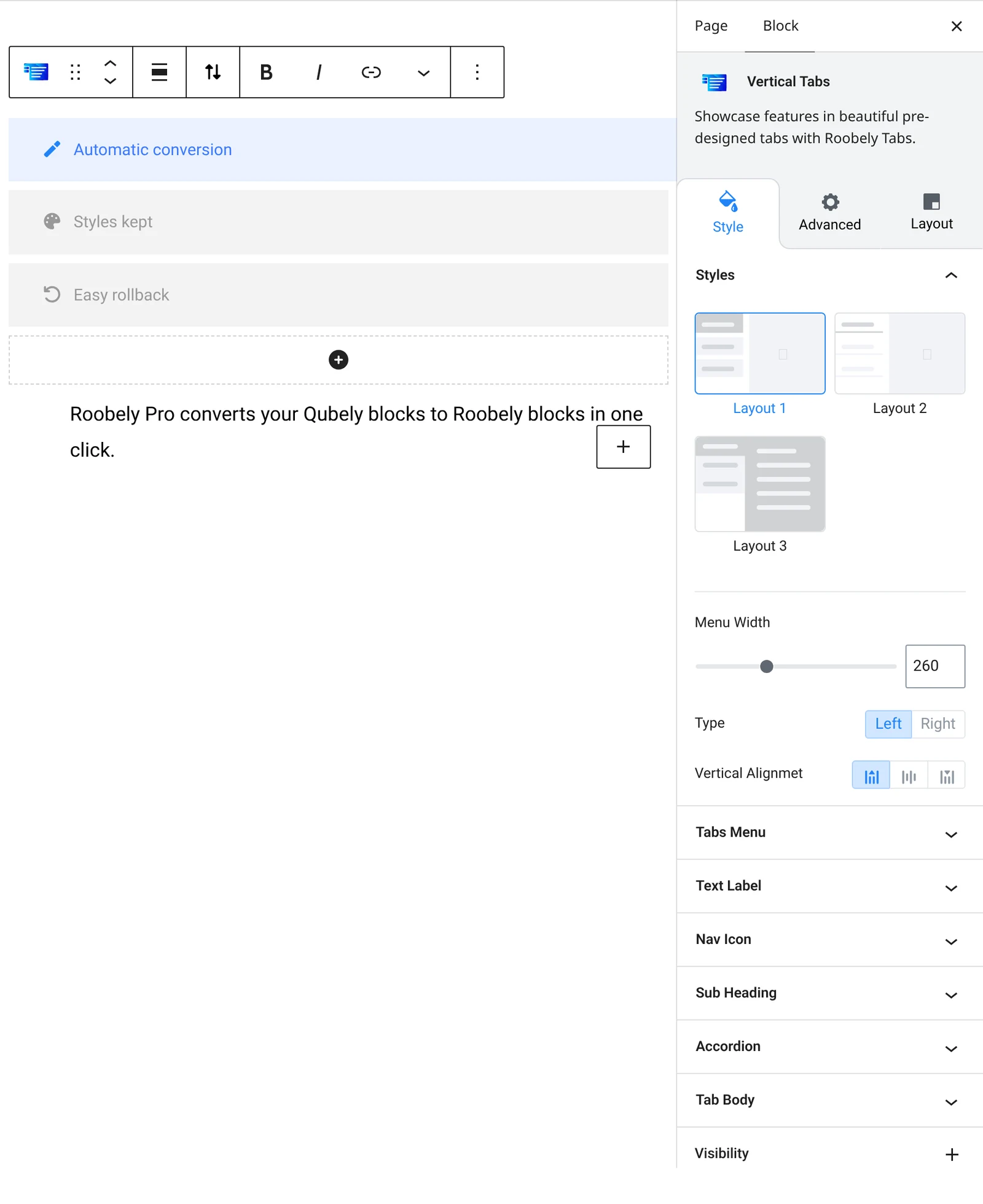
- Tabs: add, rename and reorder tabs, with optional subheadings.
- Navigation layout: tab style, width, alignment and spacing.
- Icons: add icons to tab titles and set their position and colors.
- Arrow: show an arrow next to the active tab.
- Colors: normal, hover and active colors for the navigation.
- Body: background, padding, border and shadow for the content area.
How to add it
- Open the page or post in the block editor and click the + (block inserter) button.
- Search for Vertical Tabs and choose the Roobely Vertical Tabs block.
- Add the tabs and name each one.
- Add content to each tab and style the navigation.
- Click Update or Publish, then preview the page to check it on desktop and mobile.