Gallery block
Requires Roobely Pro. Get Roobely Pro
Gallery block
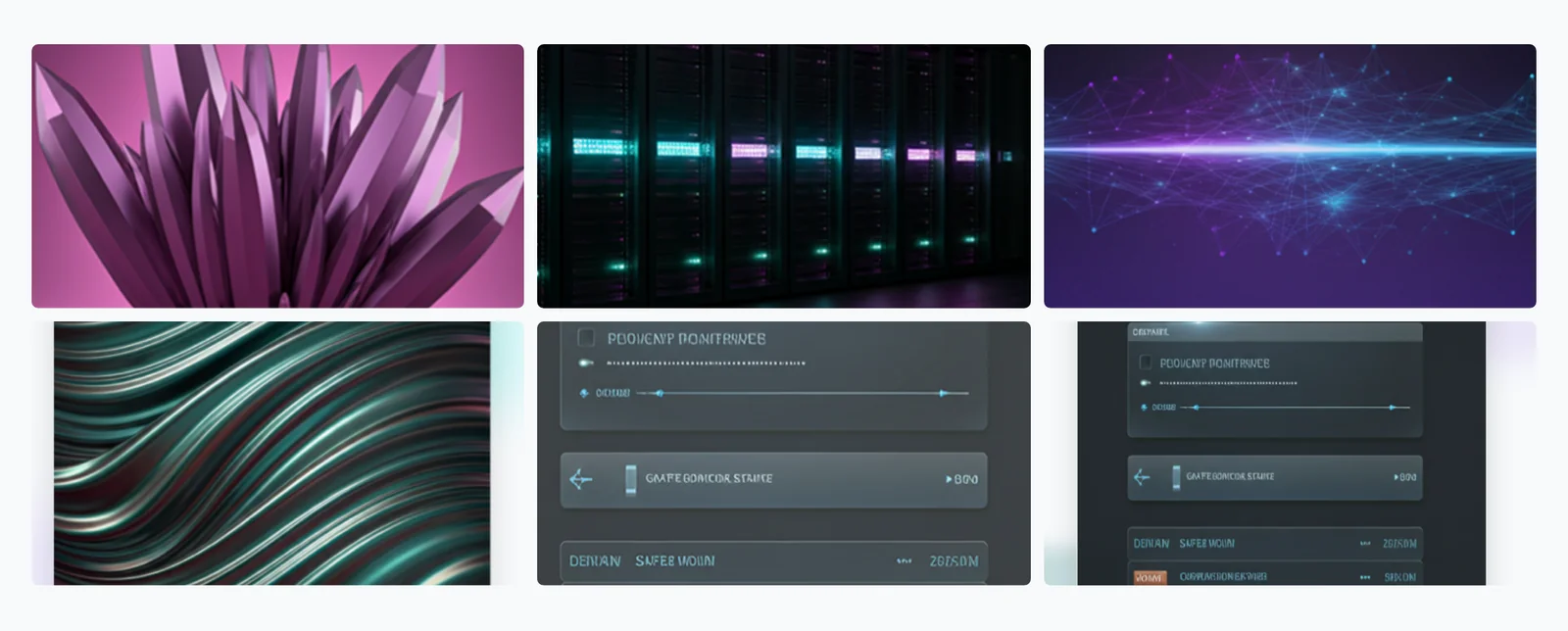
The Gallery block shows multiple images in a grid with captions, overlays and an optional lightbox popup.
Main settings
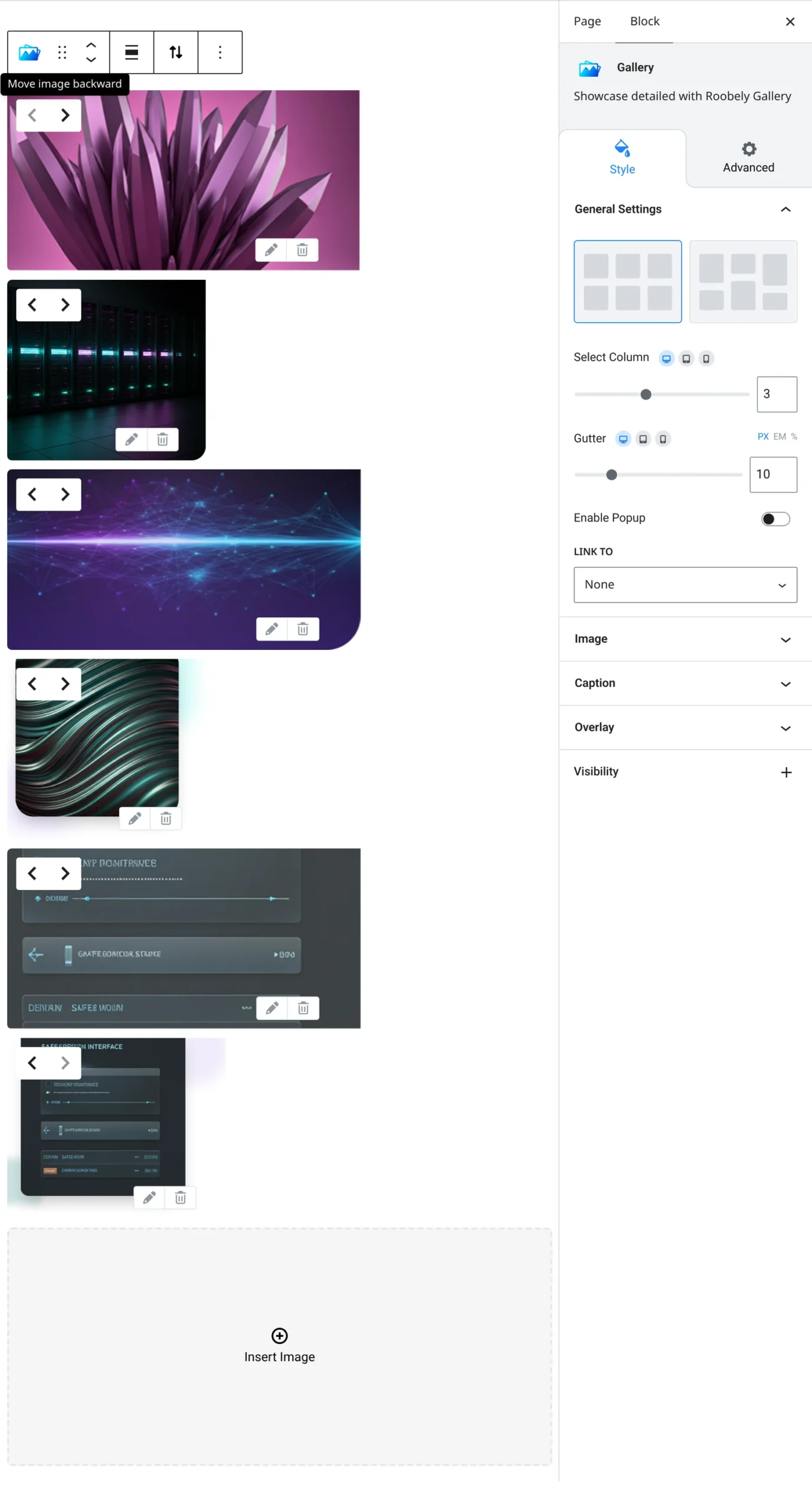
- Images: add and reorder images.
- Columns and gutter: number of columns and the gap between images.
- Image size: image size and optional fixed height.
- Captions: show captions and set alignment, color and padding.
- Overlay and animation: overlay color, blend mode and hover animation.
- Popup: open images in a lightbox, with an optional popup icon, or link images elsewhere.
How to add it
- Open the page or post in the block editor and click the + (block inserter) button.
- Search for Gallery and choose the Roobely Gallery block.
- Select images from the media library.
- Set the columns, gutter and captions, and turn on the popup if needed.
- Click Update or Publish, then preview the page to check it on desktop and mobile.