Video Popup block
Video Popup block
The Video Popup block shows a play icon, optionally over a background image, that opens a YouTube, Vimeo or self-hosted video in a lightbox.
Main settings
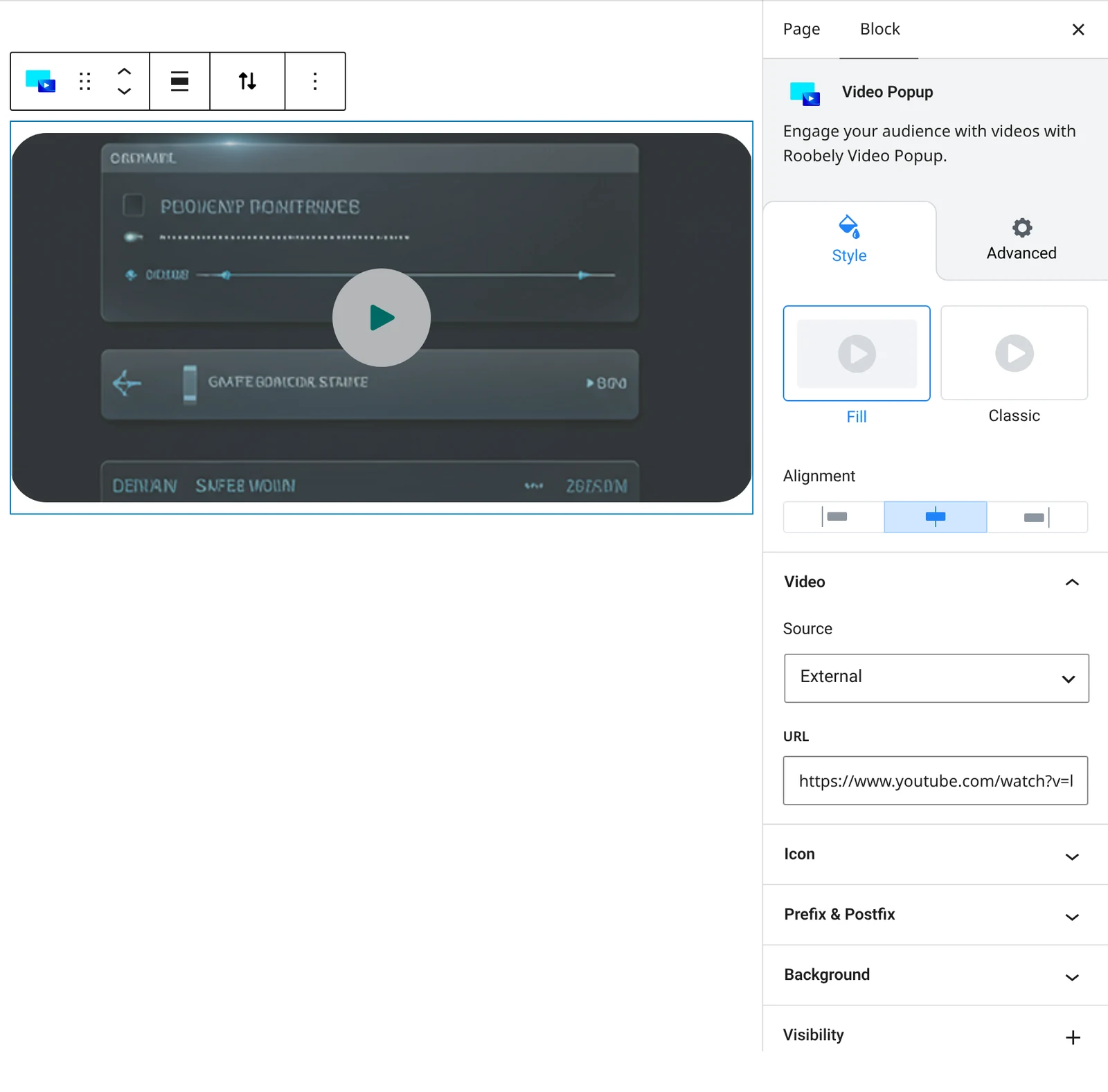
- Video source and URL: choose the source and paste the video link.
- Layout and height: choose a layout and set the block height.
- Background: background image or video with an optional overlay color, blend mode and opacity.
- Play icon: icon choice, size, colors and ripple effect.
- Prefix and postfix: text before or after the icon, with color and gap.
- Alignment: position of the play button.
How to add it
- Open the page or post in the block editor and click the + (block inserter) button.
- Search for Video Popup and choose the Roobely Video Popup block.
- Choose the video source and paste the video URL.
- Set the background, play icon style and alignment.
- Click Update or Publish, then preview the page to check it on desktop and mobile.