Form Builder block
Requires Roobely Pro. Get Roobely Pro
Form Builder block
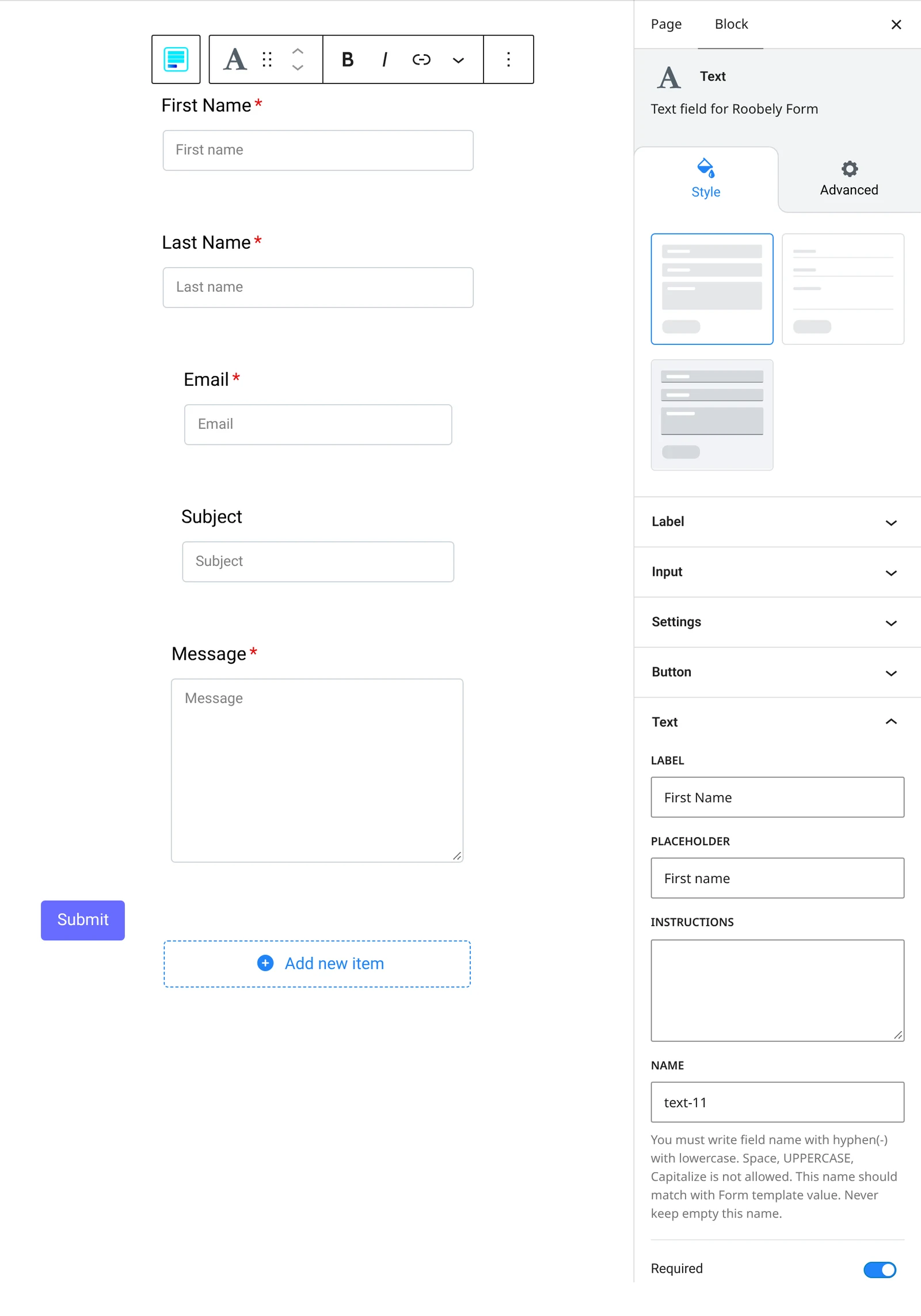
The Form Builder block creates custom forms from separate field blocks such as text, email, dropdown, radio, checkbox, date and time.
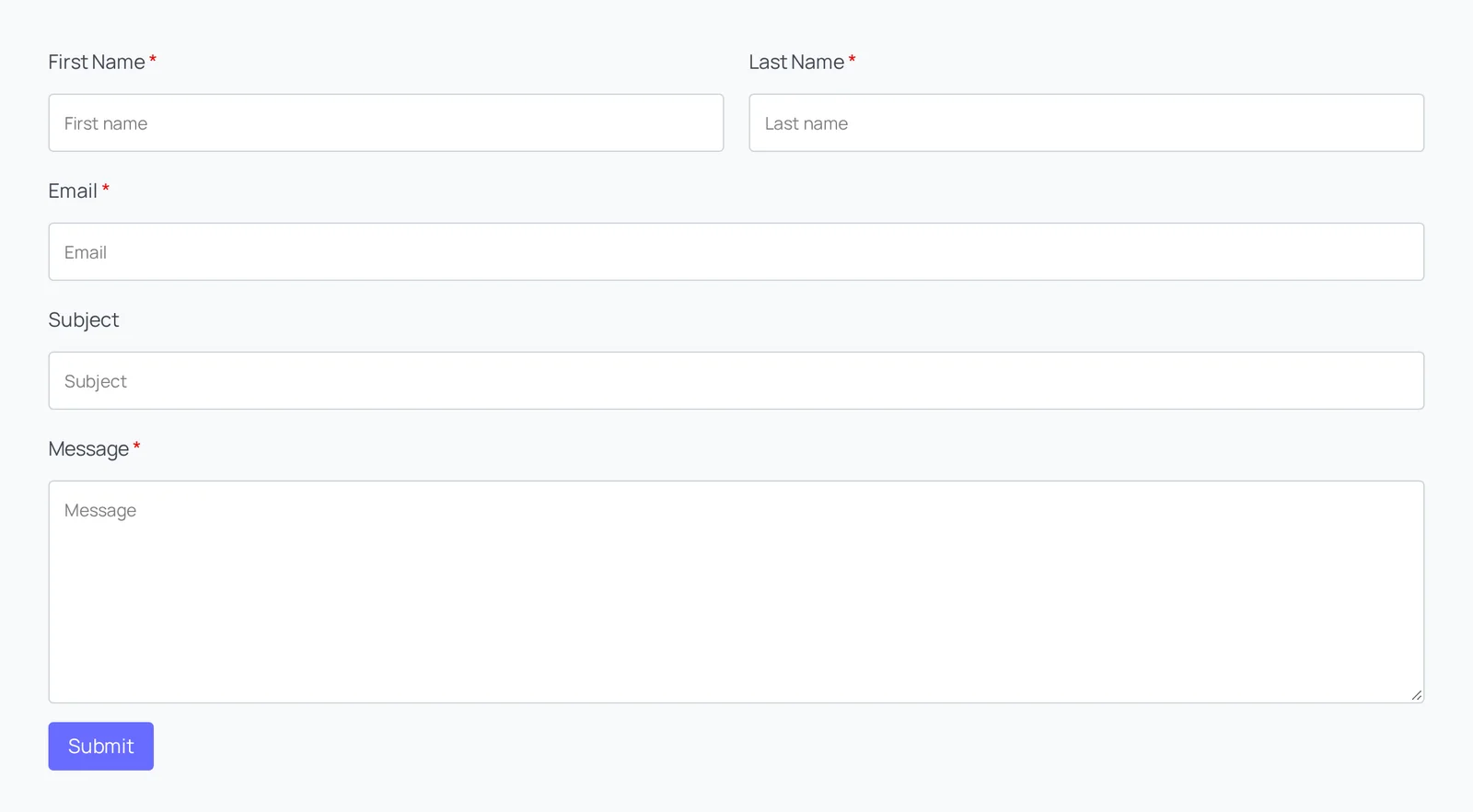
Main settings
- Fields: add field blocks inside rows and columns and set labels, placeholders and required fields.
- Layout and style: classic or material style, field size, gutter, label and placeholder visibility.
- After submit: send an email and set the receiver, subject, from address and body, or send to a Mailchimp list.
- Messages: success, form error and field error messages.
- Policy checkbox: add a consent checkbox with your own text.
- reCAPTCHA: protect the form with Google reCAPTCHA.
- Submit button: text, size, colors and icon.
How to add it
- Open the page or post in the block editor and click the + (block inserter) button.
- Search for Form Builder and choose the Roobely Form Builder block.
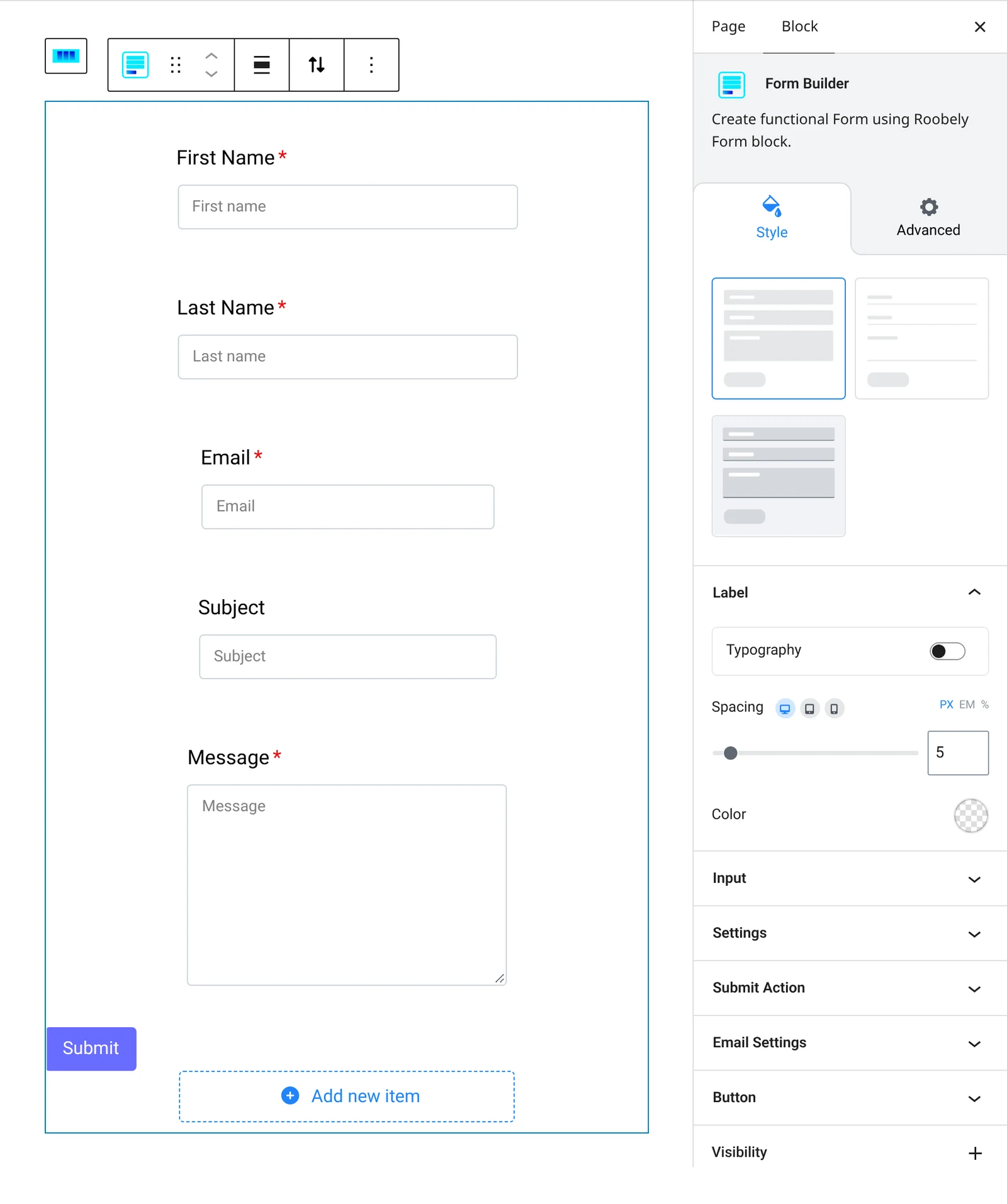
- Add rows and columns, then insert the field blocks you need.
- Set the after submit action and the messages.
- Click Update or Publish, then preview the page to check it on desktop and mobile.