Media Card block
Requires Roobely Pro. Get Roobely Pro
Media Card block
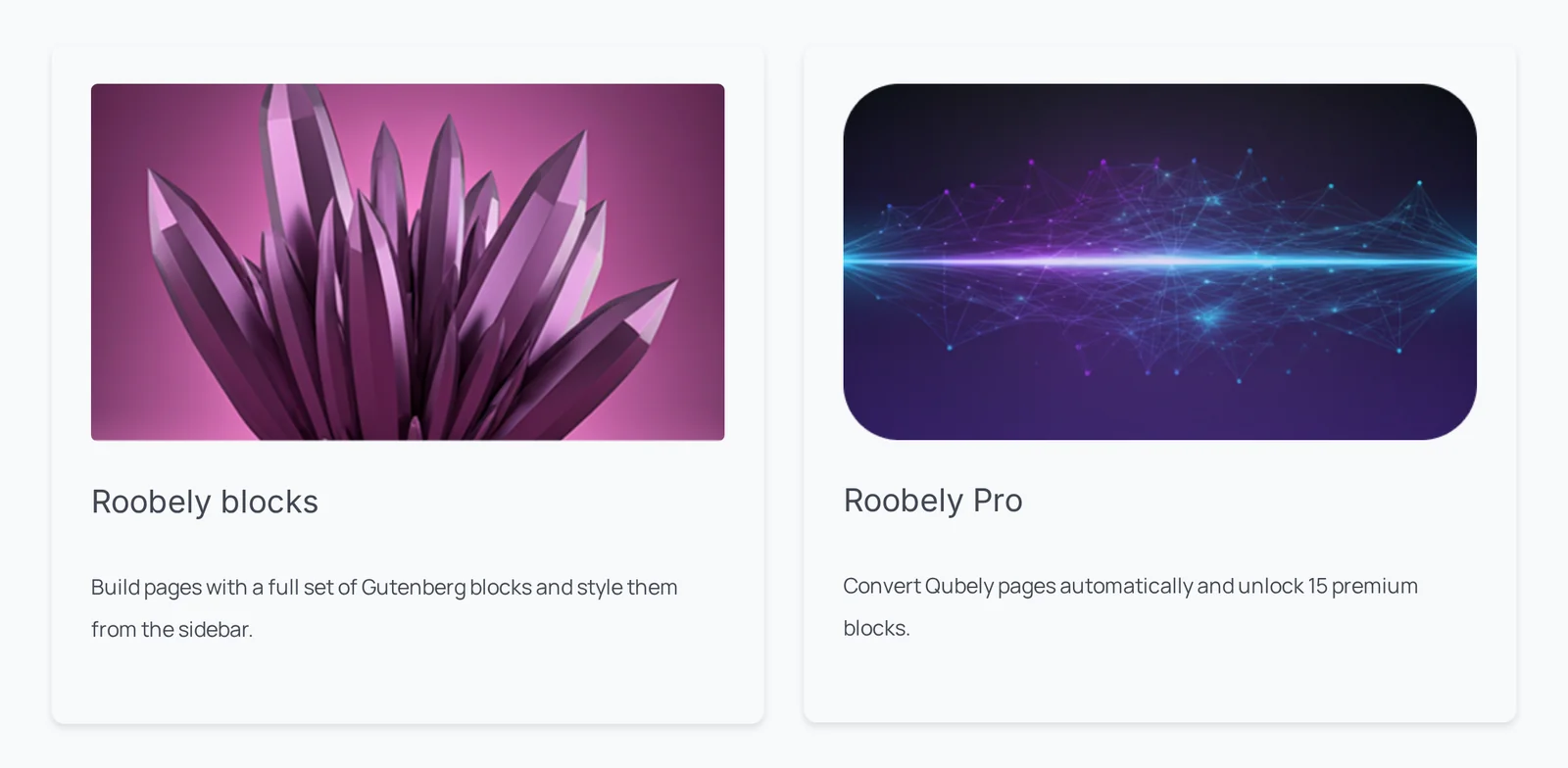
The Media Card block pairs an image or video with a title, text and badge, in several card layouts.
Main settings
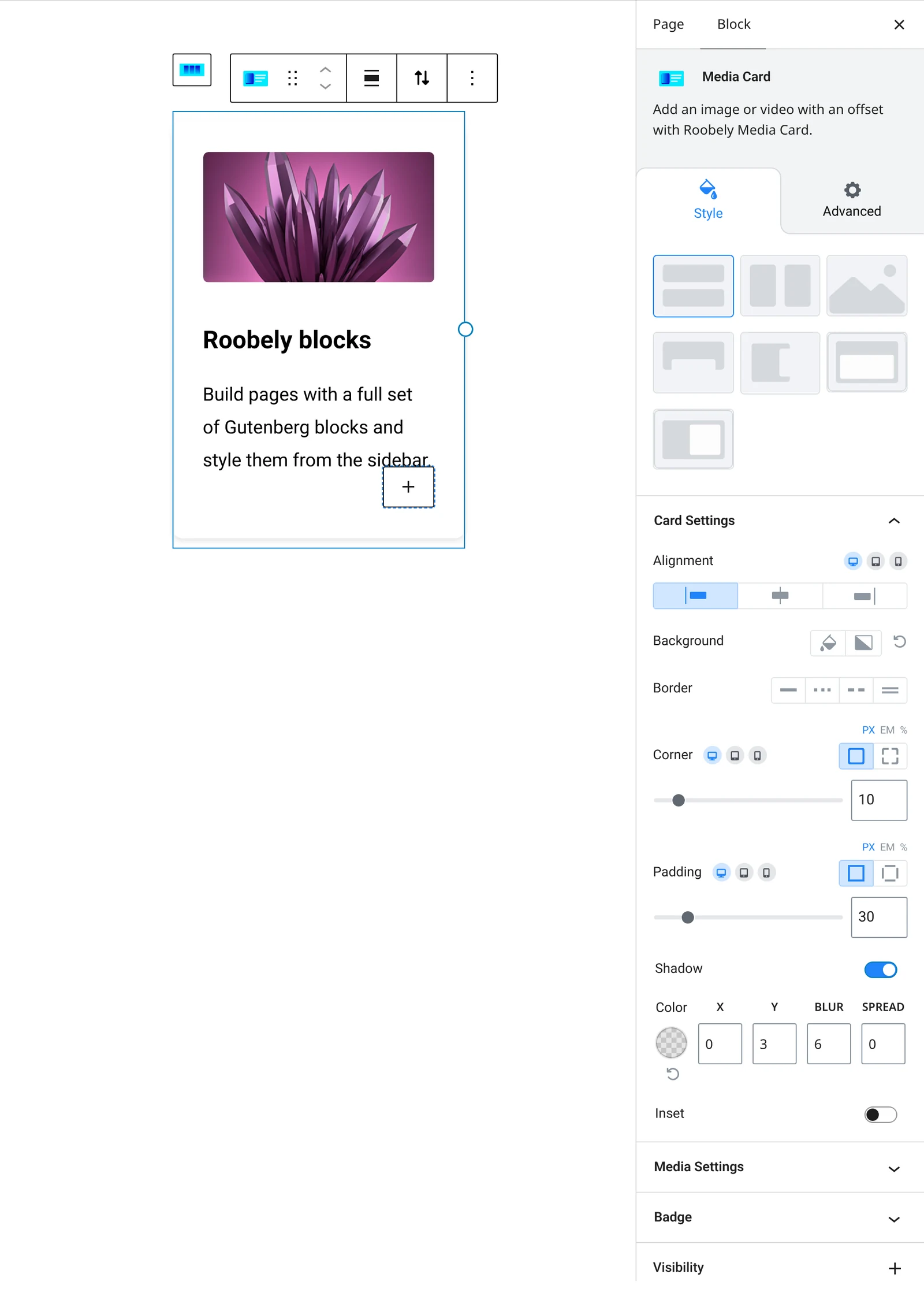
- Layout: choose a card layout.
- Media: image or video (local or external), image position and width.
- Content: title and text with position settings.
- Badge: badge text, style, position and colors.
- Overlay: overlay color, blend mode and text color.
- Card style: background, padding and fixed height.
How to add it
- Open the page or post in the block editor and click the + (block inserter) button.
- Search for Media Card and choose the Roobely Media Card block.
- Choose a layout and add an image or video.
- Enter the title, text and badge.
- Click Update or Publish, then preview the page to check it on desktop and mobile.