Price List block
Requires Roobely Pro. Get Roobely Pro
Price List block
The Price List block lists items with title, description and price, like a menu or service list.
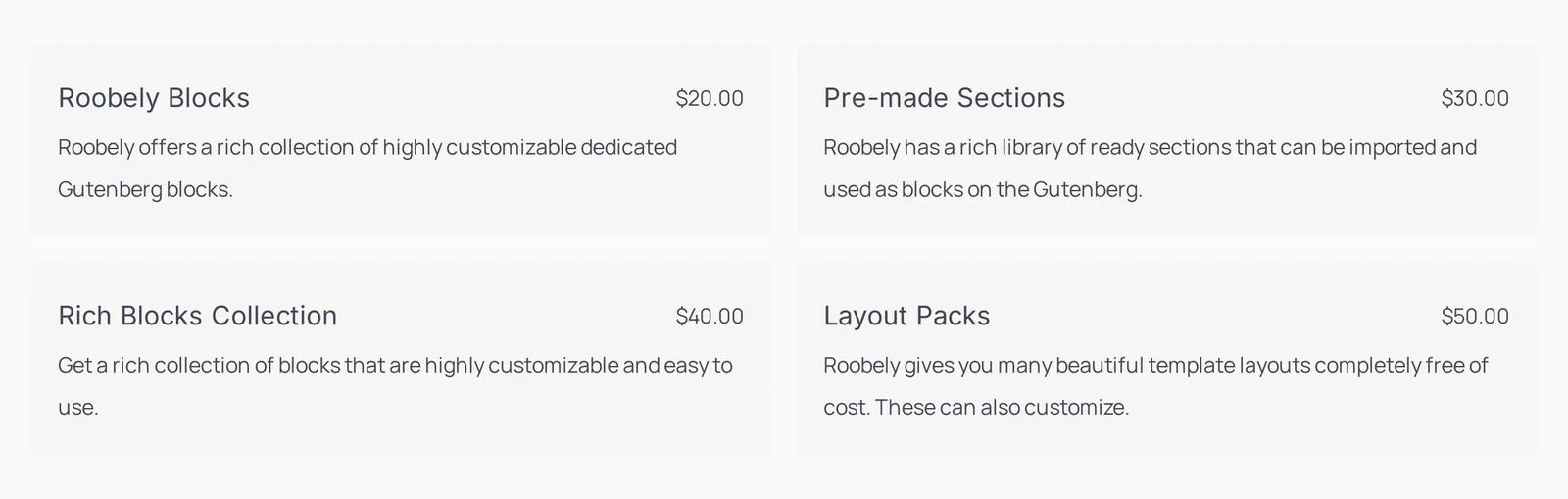
Main settings
- Items: add items with title, description, price and discount.
- Columns: number of columns and gap.
- Media: show an image or number for each item, with size and position.
- Badge: optional badge with position and colors.
- Line: a dotted or solid line between title and price.
- Item style: background, padding, border and spacing.
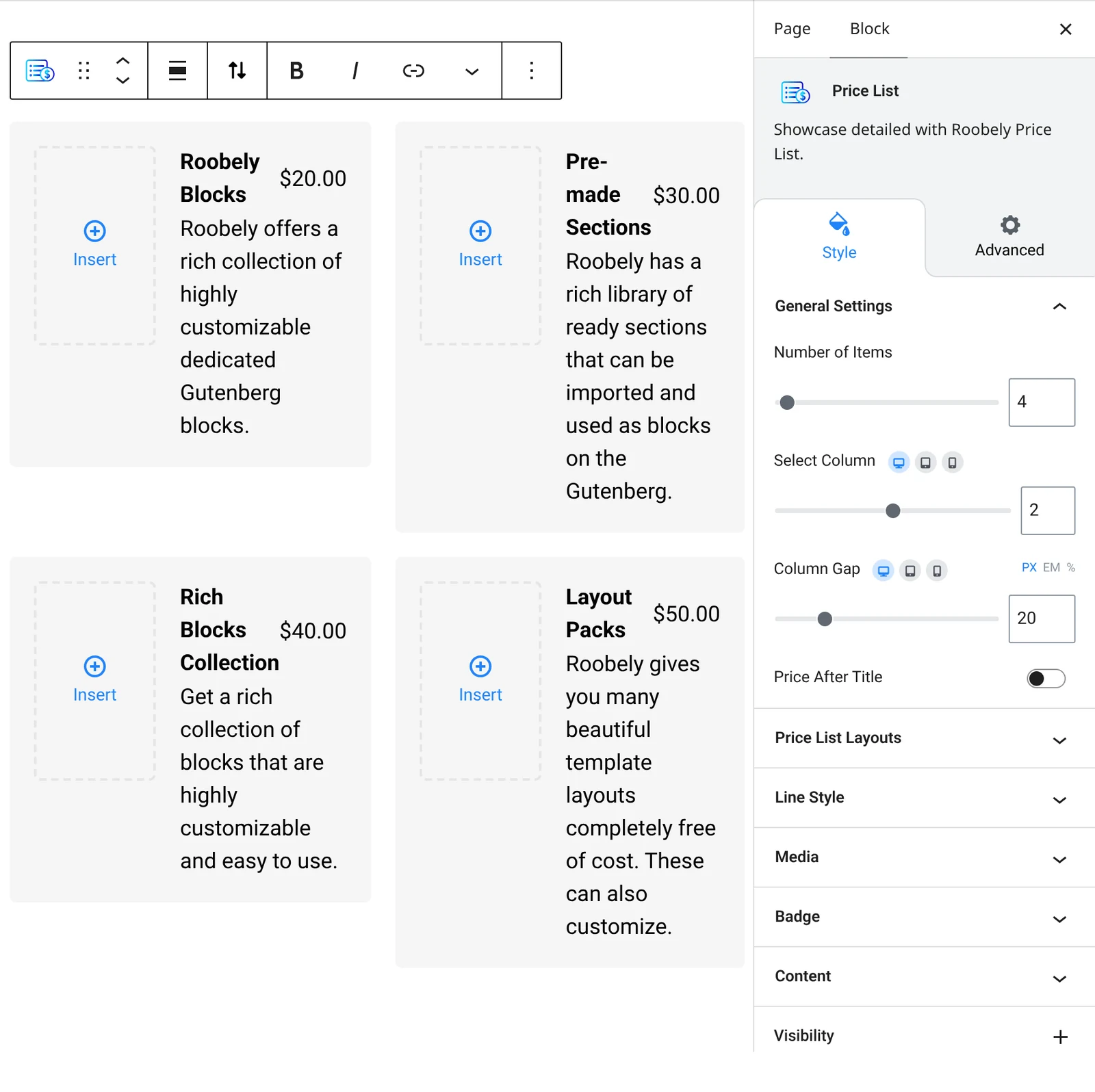
How to add it
- Open the page or post in the block editor and click the + (block inserter) button.
- Search for Price List and choose the Roobely Price List block.
- Add the items and enter title, description and price.
- Choose the columns and turn on images, badges or lines.
- Click Update or Publish, then preview the page to check it on desktop and mobile.